> For the complete documentation index, see [llms.txt](https://karini-ai.gitbook.io/karini-ai-documentation/llms.txt). Markdown versions of documentation pages are available by appending `.md` to page URLs; this page is available as [Markdown](https://karini-ai.gitbook.io/karini-ai-documentation/mcp/remote-server.md).
# Remote server
**Remote MCP (Model Context Protocol) Servers** allow you to connect external services and tools to your Karini copilots and recipes. By adding remote MCP servers, you can extend your AI workflows with capabilities from third-party services like Asana, Notion, Jira, Box, and more.
### Remote MCP Server Configuration
The **Remote MCP (Model Context Protocol) Servers** Registry lets you register MCP servers using any of these methods:
1. [**Manual Input**](#method-1-manual-input)
2. [**Trusted Server**](#method-2-trusted-server)
#### Method 1: Manual Input
If you have a custom MCP server or need specific configuration:
**Steps:**
* Access the **MCP Registry interface**.
* You'll see the **Remote MCP Servers** tab.
* Click **Add new +** in the top-right corner.
* Select **Manual Input** tab.
* Fill in the required fields:
* **Server Name**: A unique name for your server.
* **Description**: What this server does.
* **Transport Type**: Choose "SSE" or "Streamable HTTP".
* **URL**: The server's endpoint URL.
* (Optional) Add OAuth credentials:
* **Client ID**: Your OAuth client ID.
* **Client Secret**: Your OAuth client secret.
* (Optional) Check **Service Type Server** if this server should be shared across your organization.
* Click **Add Server.**
#### Method 2: Trusted Server
Trusted servers are pre-configured and ready to use.
**Steps:**
* Access the **MCP Registry interface**.
* You'll see the **Remote MCP Servers** tab.
* Click **Add new +** in the top-right corner.
* Select **Trusted Server** tab.
* Browse the list of available trusted servers .
* Use the search box to find a specific service (e.g., "Asana").
* Click the **"+"** button next to the server you want to add.
* The form will auto-populate with the server details.
* Click **Add Server** to save.
### MCP Registry Server Management
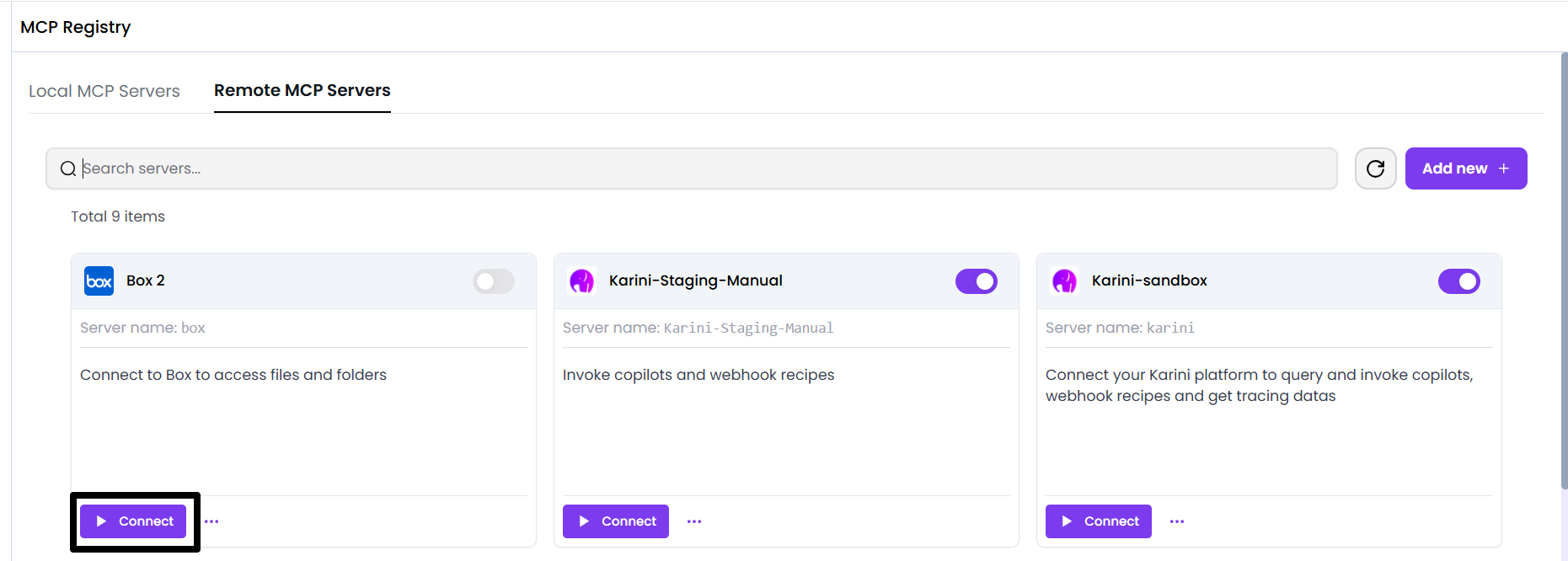
Once registered, each MCP server appears in the MCP Registry with the following controls and indicators:
#### Server Details
* **Server Name:** Displays the unique MCP server identifier (e.g., `karini-sap-odata-mcp`).
* **Enable / Disable Toggle**
* Enabled servers are available for use in tools and prompt workflows (including Prompt Playground).
* Disabled servers remain listed but are unavailable for selection in agent prompts.
### Connecting to a Server
Before you can use a server in your agent prompts, you must **connect** to it. Connecting authenticates your account and authorizes the agent prompt to access that server.
**Connect in the following situations:**
* **First-time access:** You have not connected to the server previously.
* **Authorization expired:** Your existing authorization is no longer valid and must be renewed.
* **Switching accounts:** You are switching accounts and need to re-authorize access.
Follow the steps below to connect to the server.
**Steps:**
* Find the server you want to connect to..
* Click the **Connect** button.
* If the server requires authorization:
* You'll be redirected to the service's login page.
* Sign in and authorize Karini to access your account.
* You'll be redirected back to Karini.
* Once connected, the button will change to **Test.**
{% hint style="info" %}
#### **Notes**
* **User-type servers:** Each user must establish their own connection.
* **Service-type servers:** A single connection by any one user enables access for the entire organization.
{% endhint %}
#### Testing a Server Connection
After connecting, verify the server is working correctly.
**Steps***:*
1. Click the **Test** button on a connected server.
2. Enter an MCP request and click **Send request.**
3. View execution output in the **Response** panel.
4. Use **Reset** to clear inputs.
#### Administrative Actions
You can click the three dots (⋮) on a server card to see available options.
* **Tools** :See what capabilities a server provides.A modal opens showing:
* List of all available tools
* Tool names and descriptions
* Input parameters and schemas
* Return value types
* **Remove Server** : Delete servers you no longer need.