> For the complete documentation index, see [llms.txt](https://karini-ai.gitbook.io/karini-ai-documentation/llms.txt). Markdown versions of documentation pages are available by appending `.md` to page URLs; this page is available as [Markdown](https://karini-ai.gitbook.io/karini-ai-documentation/dataset-export.md).
# Dataset Export
### **Overview**
**Dataset Exports** enables users to generate structured datasets from **Copilot** conversations and **Webhook Recipe** execution history. These datasets can be used for analytics, evaluation, auditing, optimization, and model fine-tuning workflows. Exports are stored securely within the platform and can be previewed in the application or downloaded for offline use.
Dataset Exports are accessible from both:
* [**Copilot History**](/karini-ai-documentation/copilots.md#copilot-history)
* [**Recipe History**](/karini-ai-documentation/recipes/workflow-recipe/webhook-recipe.md#webhook-history-ui)
This feature provides a comprehensive set of capabilities that enable users to generate, manage, and consume structured datasets .
### **Exported Dataset Contents**
Dataset Exports retrieves run-level historical data from available Copilot and Recipe history records and outputs it in a structured format suitable for downstream consumption.
**Included Data**
* **Prompts / Questions:** User queries or prompt text captured during execution
* **Inputs:** System inputs and user-provided inputs used for the run
* **Responses / Outputs:** Generated responses produced by the copilot or recipe execution
* **Execution Status:** Success/failure state and completion indicators
* **File References:** Links/identifiers for attached files associated with the run
* **Metadata:** Supporting attributes such as timestamps, run identifiers, and other trace fields
### Copilot History: Dataset Export
To create a **Dataset Export** from **Copilot History**, use the steps below to locate prior runs, select the export scope, and generate the dataset.
* **Export from Copilot History**
* Navigate to **Copilot**
* Select the target **Copilot**
* Click the **Action** button for the selected Copilot
* Select **View history**
* This opens the **History (Activity Dashboard)** page, where each row represents a prior run and may include fields such as **Request ID**, **Question**, **Answer**, **Error**, and **Files**
* **Select runs to export (Optional)**
* Use the **row checkboxes** to export specific runs
* If no rows are selected, control the export scope using **Limit** (exports the most recent *N* runs)
* **Generate the export**
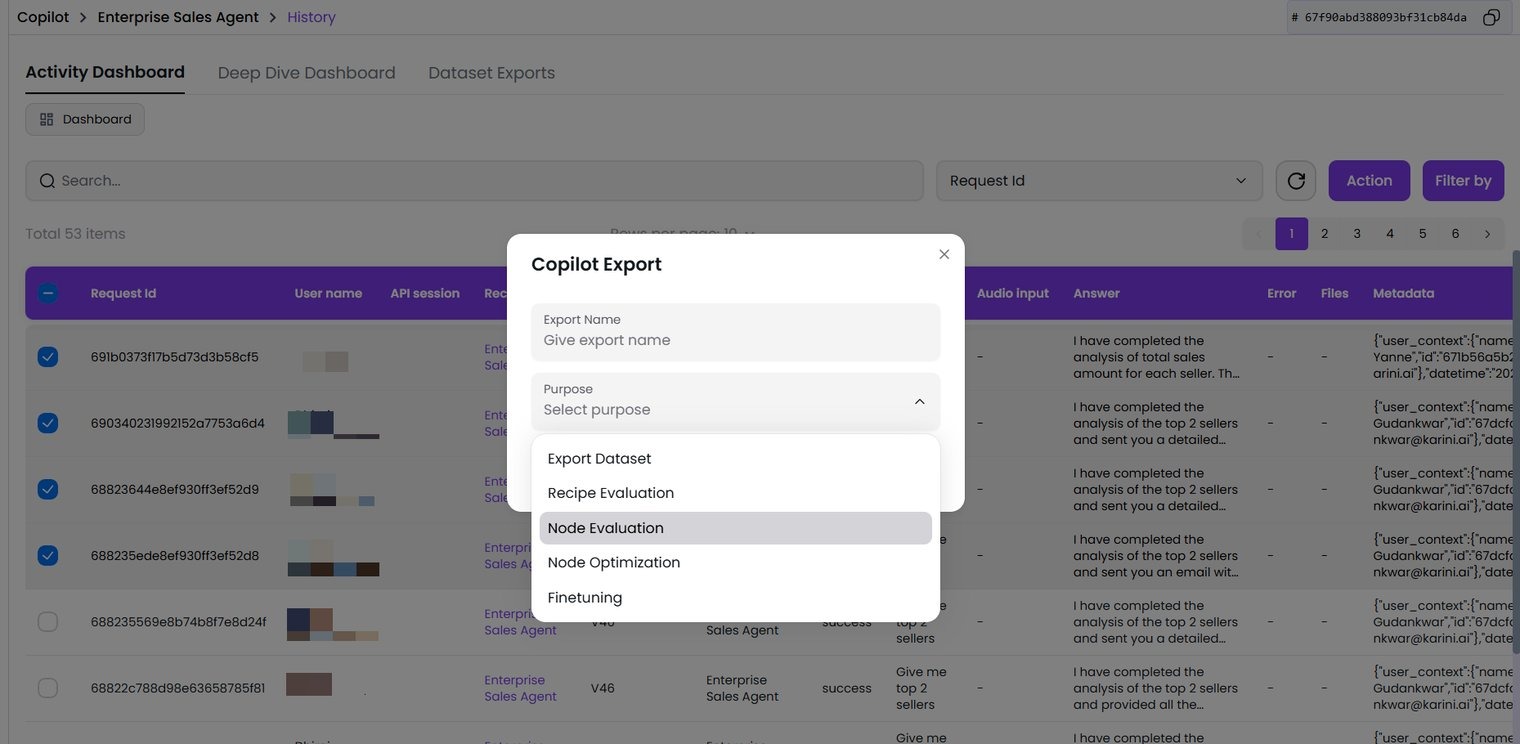
* On the **History** page, click **Action**
* Select **Export dataset**
* **Configure export settings**
* **Export Name:** Provide a descriptive dataset name
* **Purpose:** Select the export intent. Typical options include:
* Export Dataset
* Recipe Evaluation
* Node Evaluation
* Node Optimization
* Finetuning
* **Nodes:** Required for node-based purposes (e.g., **Node Evaluation**). Select the node to evaluate/export
* **Limit:** Set the maximum number of runs to include
* **Finalize**
* Click **Proceed** to generate the export
### Webhook History: Dataset Export
* To create a **Dataset Export** from **Webhook History**, use the steps below to locate prior runs, select the export scope, and generate the dataset.
* **Export from Webhook History**
* Navigate to **Recipe**
* Select the target **Webhook recipe**
* Click the **Action** button for the selected recipe
* Select **Webhook history**
* This opens the **History (Activity Dashboard)** page, where each row represents a prior run and may include fields such as **Request ID**, **Question**, **Answer**, **Error**, and **Files**
* **Select runs to export (Optional)**
* Use the **row checkboxes** to export specific runs
* If no rows are selected, control the export scope using **Limit** (exports the most recent *N* runs)
* **Generate the export**
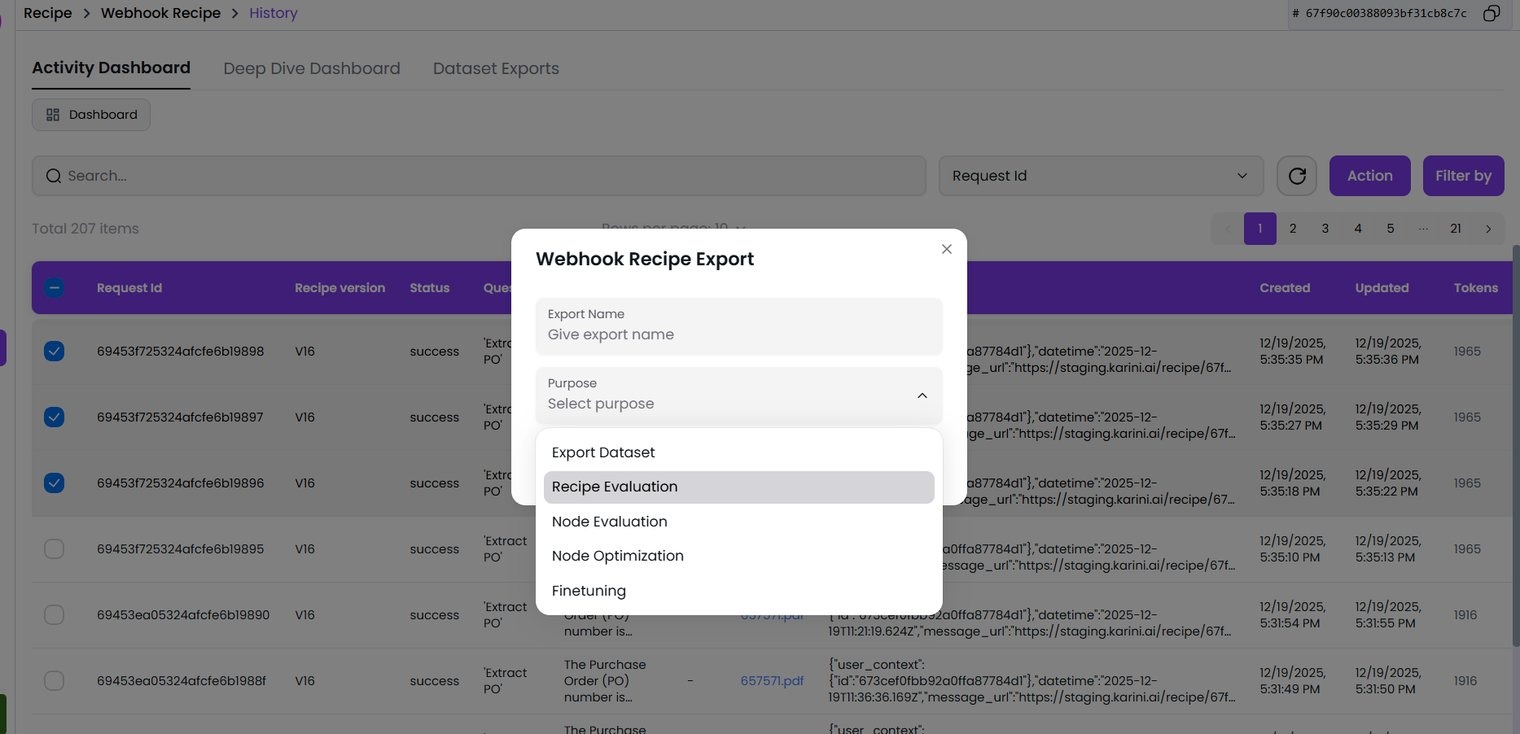
* On the **History** page, click **Action**
* Select **Export dataset**
* **Configure export settings**
* **Export Name:** Provide a descriptive dataset name
* **Purpose:** Select the export intent. Typical options include:
* Export Dataset
* Recipe Evaluation
* Node Evaluation
* Node Optimization
* Finetuning
* **Nodes:** Required for node-based purposes (e.g., **Node Evaluation**). Select the node to evaluate/export
* **Limit:** Set the maximum number of runs to include
* **Finalize**
* Click **Proceed** to generate the export
### Export Purpose and Output Formatting
When creating an export, the user must choose an **Export Purpose**. The selected purpose determines how records are filtered and how the/or data is structured for the intended workflow.
| Export Purpose | Intended Use | Output Characteristics |
| ----------------- | --------------------------------------------------------- | ------------------------------------------------------------------------------------------- |
| Export Dataset | General reporting, analysis, archiving | Generic historical interaction/execution dataset |
| Recipe Evaluation | End-to-end evaluation of Recipe performance | Evaluation-oriented structure to compare quality across runs/versions |
| Node Evaluation | Validation of a specific node in a Recipe/Copilot flow | Data scoped to a node to isolate behavior and performance |
| Node Optimization | Iterative improvement of node prompts/logic/configuration | Data shaped for tuning decisions using real traces |
| Fine-tuning | Model training/adaptation workflows | Fine-tuning-friendly format (for example, JSONL) with structured message pairs and metadata |
### Export Management and Tracking
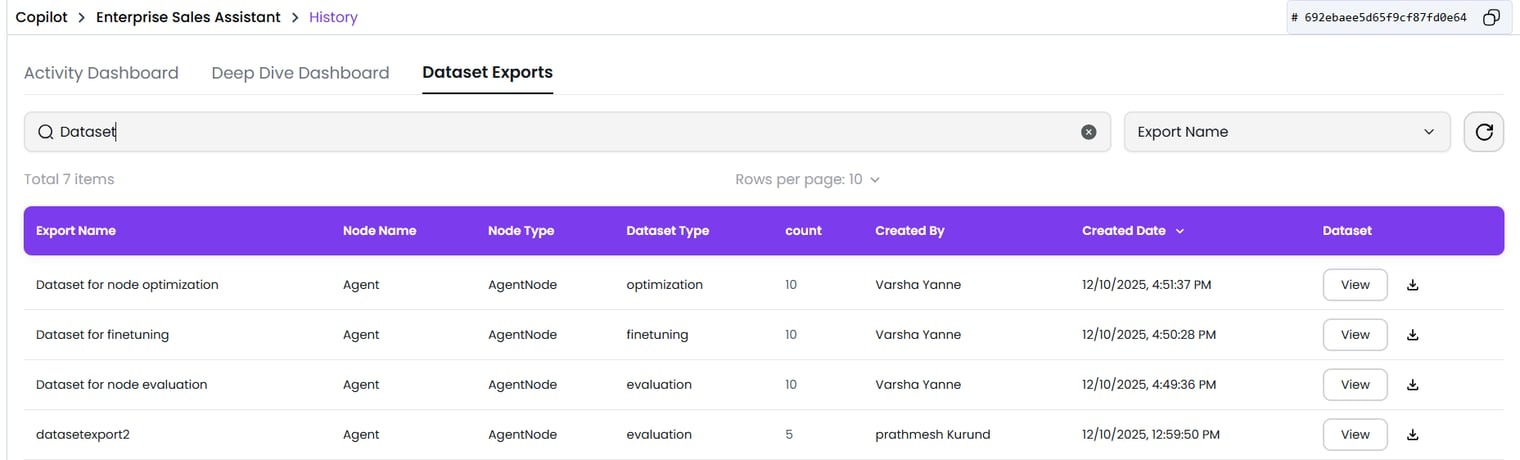
A dedicated **Dataset Exports** view is available for tracking and managing all generated exports. Each export entry displays essential metadata, such as export name, export purpose/type, node information (when applicable), record count, creator, and creation timestamp. From this view, users can preview an export using **View** or retrieve it using **Download**.
{% hint style="info" %}
**Note:** Recipe Evaluation exports are downloaded to the user’s local system.
{% endhint %}